Explore
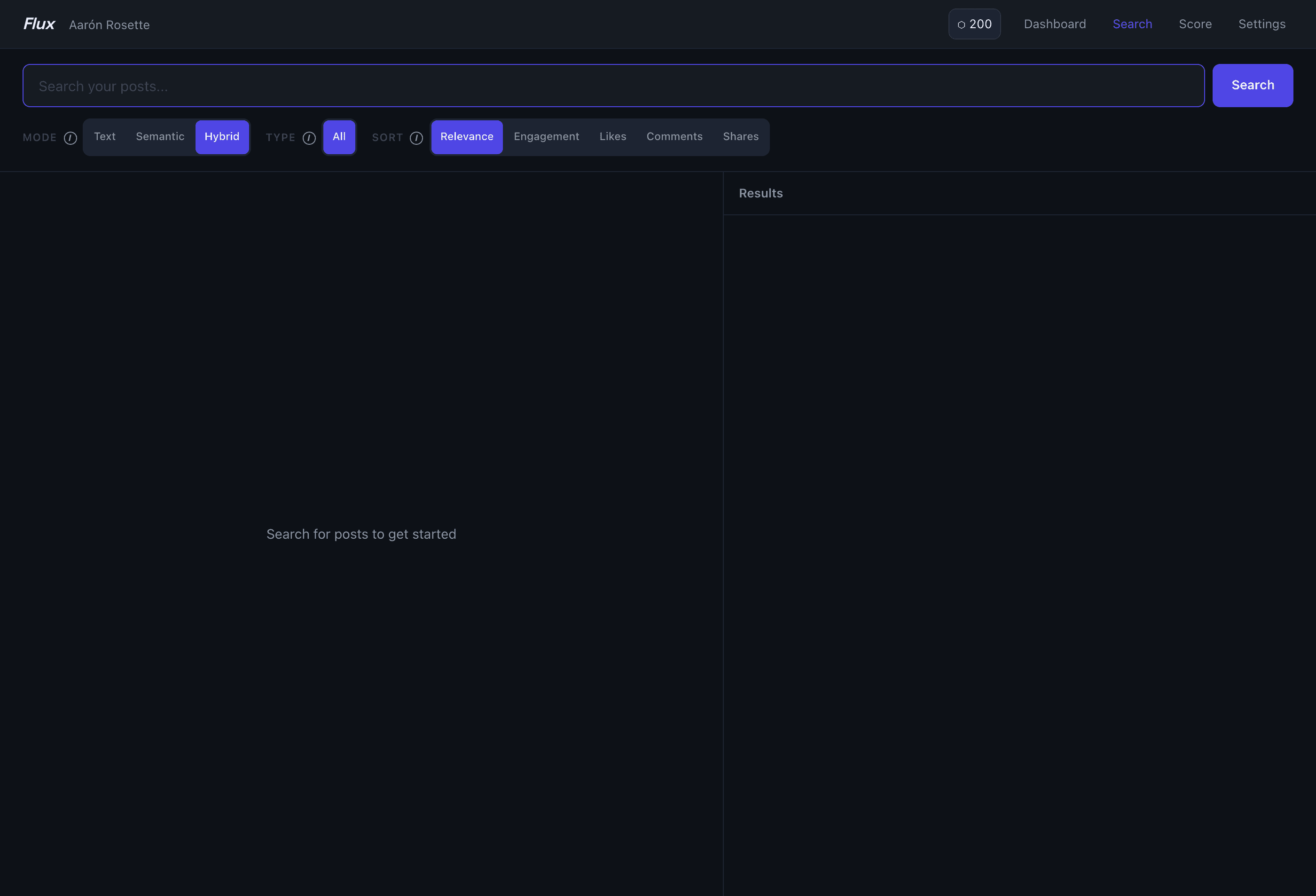
EdgeExplore is a semantic search interface over your entire LinkedIn post history. Type a topic, phrase, or question, and Flux surfaces past posts that match by meaning — not just by the exact words you used.
How it works
Navigate to Explore in the sidebar. Type a query in the search box and press Enter or click Search. Results appear in a ranked list on the right; clicking any result opens the full post text in the viewer panel on the left.
Below each selected post, Flux automatically loads a Similar Posts section — up to 8 posts from your library with closely related meaning, ranked by vector similarity.
Results return up to 30 posts per search.
Search modes
Use the Mode pills to control how matching works:
- Hybrid (default) — combines keyword and semantic matching for the best overall results.
- Text — strict keyword match, useful when you remember a specific phrase.
- Semantic — pure meaning-based matching, useful when you only remember the topic or angle.
Switching modes while results are displayed re-runs the search immediately.
Filters and sorting
Type pills appear after your first search and reflect the post formats actually in your results (text, image, video, article, document, poll). Select one to narrow the list.
Sort pills let you re-order results without a new API call:
- Relevance (default) — API match score
- Engagement — total likes + comments + shares
- Likes, Comments, Shares — individual metrics
Tips
- The canonical use case is "find that post I wrote a long time ago" — describe the topic or argument, not the exact title.
- Use Semantic mode when you want conceptually related posts even if they use different vocabulary. Use Text mode when you need to pin down a specific phrase or name.
- After clicking a result, check the Similar Posts section — it often surfaces related posts you forgot existed and can't easily find by keyword.
- Explore searches your own post history only. To research another person's posts, use the prospect brief view accessible from your tracked profiles.
Learn more about Explore →